
10 Feb Role-Based Access Control: Three Levels of Security
Underwater hull inspection involves multiple parties with different responsibilities and access needs. Shipping companies own vessels and need oversight of their entire fleet. Fleet managers coordinate inspection activities across multiple vessels and organizations. Service providers conduct the actual inspections and need access to specific projects they’re working on. Each party requires different levels of access to vessel data, inspection projects, and reporting capabilities.
We’ve implemented a comprehensive Role-Based Access Control (RBAC) system for HullVAR that provides granular control over what users can see and do in the application. The system operates on three distinct levels, each serving a specific purpose in the security architecture.
The Three Permission Levels
1. Navigation-Level Permissions
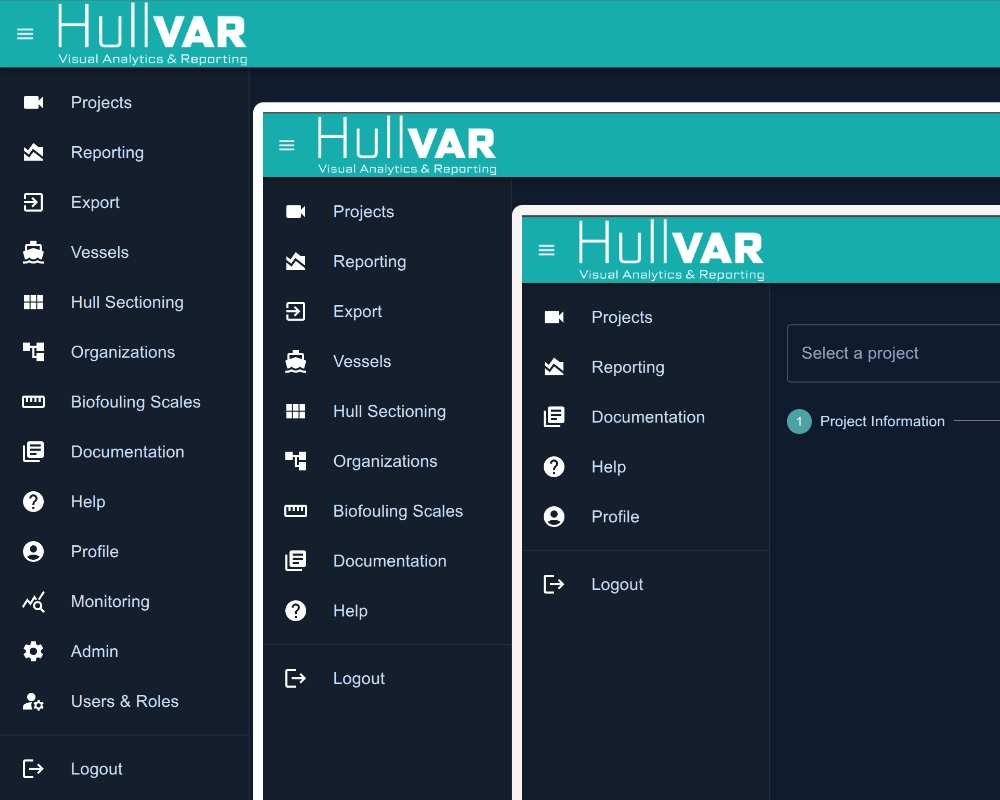
The first level controls which modules and pages users can access. When a user logs in, the system determines which navigation items appear in their menu based on their assigned role. For example, an Inspector might only see Projects, Reporting, Documentation, Help, and Profile, while a Fleet Manager has access to additional modules like Vessels, Organizations, and Monitoring.
This level prevents users from even knowing about features they shouldn’t access. The frontend dynamically generates navigation menus and routes based on the user’s permissions, ensuring that unauthorized pages cannot be accessed even by manually typing URLs.
2. Model-Level CRUD Permissions
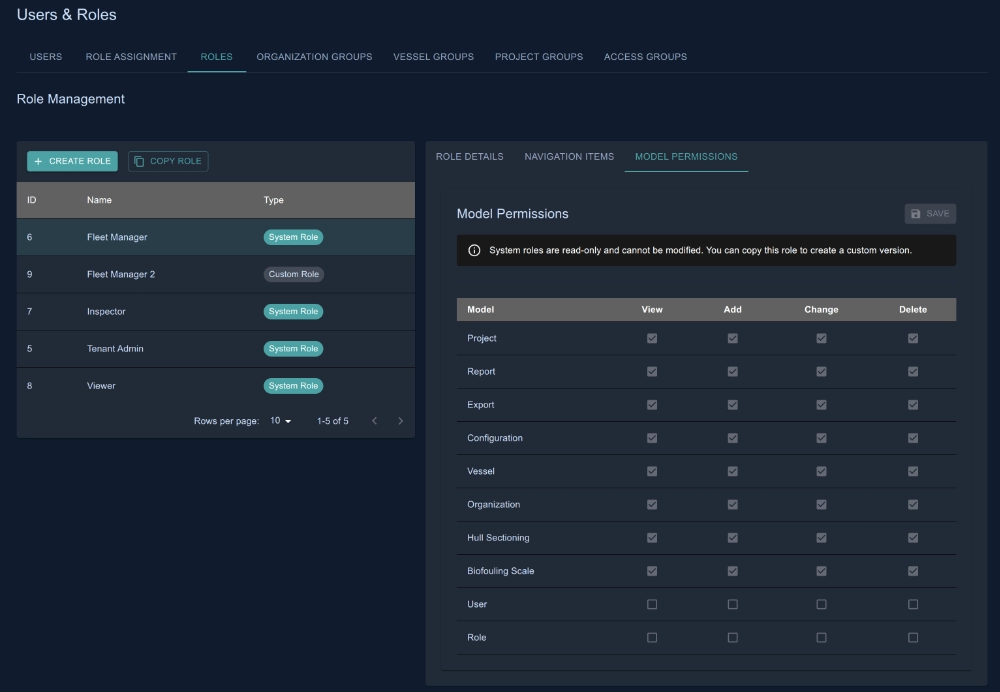
The second level determines what actions users can perform on different types of data. CRUD stands for Create, Read, Update, and Delete. A role might allow viewing and editing projects but not creating or deleting them.
Consider three different scenarios: An Inspector can view and change projects but cannot add or delete them, meaning they can update inspection findings but cannot create new projects. A Viewer has read-only access to projects – they can see all project details but cannot modify anything. A Fleet Manager has full CRUD permissions on projects, allowing them to create, view, edit, and delete projects as needed. The system uses these permissions to show or hide action buttons in the interface – if you don’t have delete permission, you won’t see delete buttons.
3. Object-Level Permissions
The third level controls access to specific instances of data. Even if a user has permission to view projects in general, object-level permissions determine which specific projects they can see.
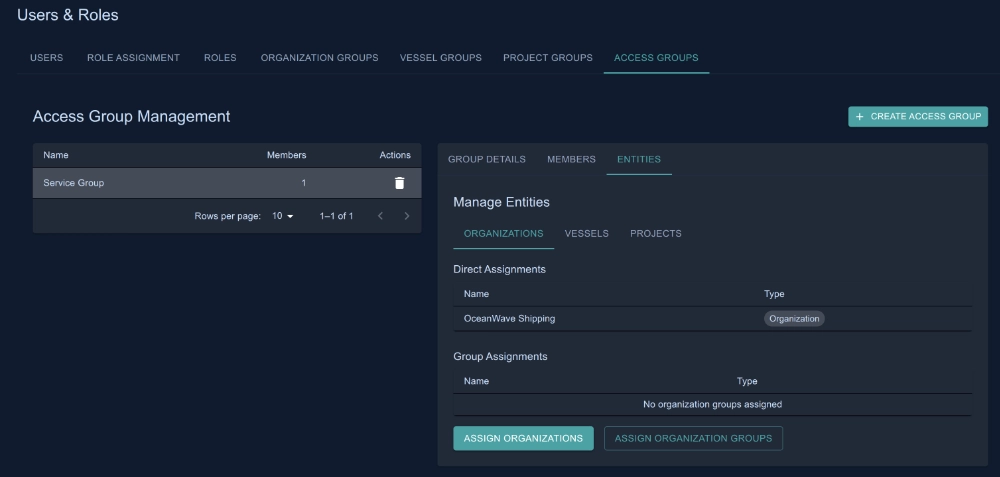
The system implements this through a hierarchical access group structure. Access flows down the hierarchy: if you have access to an organization, you automatically get access to all vessels in that organization and all projects for those vessels. This hierarchical approach reduces administrative overhead while maintaining fine-grained control.
Role Examples
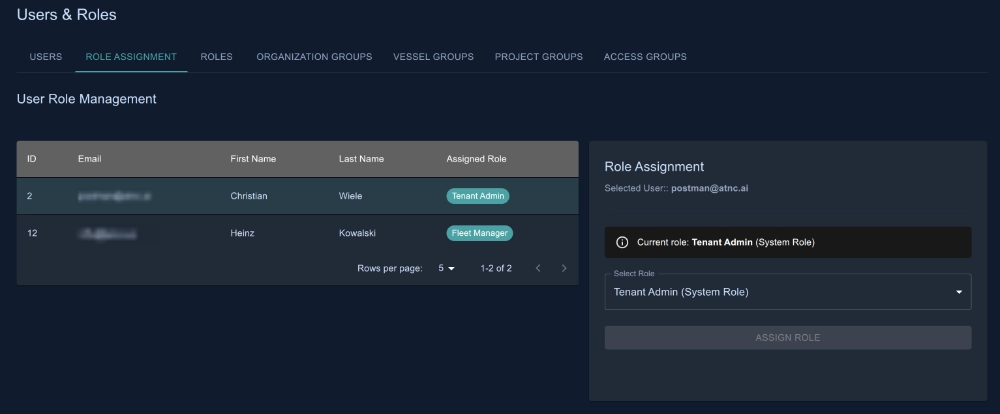
Tenant Admin
- Navigation: All modules
- CRUD: Full permissions on all models
- Objects: Access to everything in the tenant
Fleet Manager
- Navigation: Projects, Reporting, Export, Vessels, Hull Sectioning Schemas, Organizations, Biofouling Scales, Monitoring, Documentation, Help, Profile
- CRUD: Full permissions on projects, vessels, organizations, hull sectioning, and biofouling scales
- Objects: Can be restricted to specific organizations/vessels or granted unrestricted access
Inspector
- Navigation: Projects, Reporting, Documentation, Help, Profile
- CRUD: Can view and change projects
- Objects: Access limited to assigned projects only
Viewer
- Navigation: Projects, Reporting, Documentation, Help, Profile
- CRUD: View-only access
- Objects: Access limited to assigned projects only
Unrestricted Access Option
Roles can be configured with an “unrestricted access” flag. When enabled, users with that role bypass object-level filtering while still respecting CRUD permissions. This is useful for organizations that want certain roles to see all data without the complexity of access group assignments. For example, a Fleet Manager role with unrestricted access can view all projects in the tenant, but if they don’t have delete permission, they still cannot delete any projects. This separates the “what can you do” question (CRUD permissions) from the “what can you see” question (object-level access).
Access Groups and Hierarchical Filtering
Access groups simplify permission management by grouping organizations, vessels, and projects together. Instead of assigning individual users to individual projects, administrators assign users to access groups, and those groups contain the relevant entities.
The hierarchical nature means you can grant access at any level:
- Grant access to an organization → user sees all vessels and projects in that organization
- Grant access to a vessel → user sees all projects for that vessel
- Grant access to specific projects → user sees only those projects
Users can belong to multiple access groups, and their permissions are combined. If one access group grants access to Organization A and another grants access to Project X (which isn’t in Organization A), the user gets access to both.
Entity Groups for Bulk Management
Organization Groups, Vessel Groups, and Project Groups allow administrators to bundle entities together for easier permission assignment. Instead of individually selecting 50 vessels, you can create a “Container Fleet” vessel group and assign it to an access group in one action.
Audit Trail
Every permission change is logged in a comprehensive audit trail. The system tracks who made what changes, when they were made, and from which IP address. This includes:
- Role assignments and removals
- Access group membership changes
- Permission modifications (navigation items, CRUD permissions)
- Entity access grants and revocations
- Role and access group creation, updates, and deletions
Each audit log entry captures the user who performed the action, the affected user or entity, and detailed information about what changed. For role assignments, the system records both the old and new roles. For entity access changes, it logs the entity type, entity IDs, and whether access was granted or revoked.
The audit interface displays these logs in a filterable table with color-coded action chips: green for additions and grants, red for deletions and revocations, orange for updates, and blue for copy operations. Only tenant administrators can access the audit logs, ensuring that the security trail itself remains secure.
The audit logging is designed to never interfere with operations. If logging fails for any reason, the main operation continues successfully. This ensures that audit functionality doesn’t become a point of failure for critical permission changes.
Benefits of This Approach
Separation of Concerns: The three-level system cleanly separates module access, action permissions, and data visibility. This makes it easier to reason about what a user can and cannot do.
Flexibility: Organizations can choose between unrestricted roles (simpler, broader access) and restricted roles with access groups (more complex, tighter control) based on their security requirements.
Hierarchical Efficiency: Granting access at the organization level automatically cascades to vessels and projects, reducing administrative work while maintaining security.
Role-Based Management: Permissions are tied to roles, not individual users. When you need to change what Inspectors can do, you update the Inspector role once rather than updating dozens of user accounts.
Scalable: The system uses efficient database queries with set operations and proper indexing, ensuring performance even with large numbers of users and entities.
Gradual Adoption: Organizations can start with unrestricted roles and add object-level restrictions later as their needs evolve. The system doesn’t force complexity on those who don’t need it.
The RBAC system provides the foundation for secure multi-user collaboration while maintaining the flexibility to adapt to different organizational structures and security requirements.
Want to learn more about HullVAR? Contact Us!